
Whether you're SSA, SATB, TTBB, or a youth choir with various age levels - Sections in Chorus Connection can be customized for your chorus's setup!
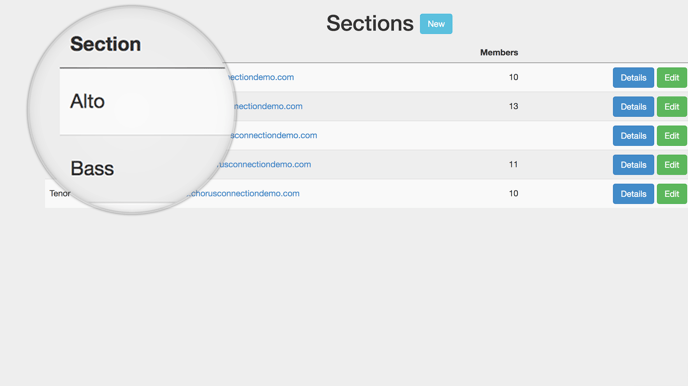
Manage Sections in Chorus Connection
Go to: Manage>Sections
Sections are most often your chorus's voice parts and one additional "catch-all" section for folks who are entirely non-singing. Non-singing is often used for staff members or volunteers or other supporters who never sing with your group. Every member must have a section, and they can only be assigned to one section. So, if folks ever sing with your group, they ought to be in the section for their voice part.
Each section has an email address and you have total control over who can use it! This allows select people to send messages to just the members of the section. This is perfect for folks like Section Leaders.
How to Create a Section
- Click the New button.
- Type the section's name and the section's email address. You're able to customize the email address before the @ symbol.
- Click Save.
How to Edit the Section Name and Email Address
- Click the green Edit button beside the section you want to edit.
- Change the name of the section and the e-mail address.
- Click Save.
How to Change Section Email Permissions
- Click the green Edit button beside the section you want to edit.
- Under "People who can email this group," you can choose from three options so only the right people can e-blast the members of the section.
- Admins only: This locks down the email address so only full Admins can use it.
- Admins and some group members: This allows you to grant permission to use the email address to just the people you choose from the list. (Check the "Can Email?" box for each person.)
- Admins and all group members: This turns the email address into a "chat" list. Please use this setting carefully since it means that every singer can send and "reply all" to every section message.
- Click Save.
How to Delete a Section
- Make sure no members are in the section. The members can be found on the main screen or by clicking the "Details" button.
- Then click the Delete button next to the section. Important note: Deleting a section will permanently delete the section's email archive.